FinOps Inform
Map AWS Spend by Rule With Cost Categories, No Tags Required for FinOps
Practical steps for FinOps and engineers: configure AWS Cost Categories, preview and test rules, and debug allocation mismatches.

AWS Cost Categories let you group billing line items into named, rule-based buckets that map spend to teams, products, or environments without touching a single resource tag. Anyone accountable for reading an AWS bill and answering “who spent this?” benefits: FinOps analysts, engineering leads, and finance teams alike. Once configured, categories feed straight into Cost Explorer, AWS Budgets, and the Cost and Usage Report, so allocation stays consistent everywhere you look.
TL;DR:
- Cost categories provide a centralized, rule-based method to group AWS billing expenses, catching untagged spend and integrating seamlessly with AWS cost tools.
- They support multiple rule types and dimensions, including account, service, region, and existing categories, enabling hierarchical and flexible cost organization.
- Only the AWS Organizations management account can create or modify cost categories, which are evaluated in order and can impact cost reporting accuracy.
- Shared costs can be split proportionally, fixed, or evenly across categories, but split rules do not automatically update downstream reporting tools.
- Cost categories complement tagging but cannot identify architectural inefficiencies; continuous analysis tools like Koritsu AI can uncover waste and optimize costs beyond categorization.
What Is an AWS Cost Category, and How Does It Differ From Tags?
A cost category is a named grouping (its “name”) with a set of possible “values” that AWS applies to every billing line item matching your rules. Unlike a tag, which lives on a resource and depends on someone remembering to apply it, a category is a persistent billing-layer construct you define once, centrally, and it applies retroactively across accounts you don’t control resource-by-resource.
That distinction matters for governance:
- Tags are set at the resource level and only work if engineers apply them consistently.
- Cost Categories are set at the billing level and can catch spend that was never tagged at all.
- Category values appear as columns in the AWS Cost and Usage Report, in Cost Explorer filters, and in Budgets scopes.
AWS itself frames categories as the safety net for exactly this gap: when tagging discipline breaks down, categories still give you a usable view of spend, according to AWS’s guidance on cost visibility.
What Rule Types and Dimensions Does AWS Support?
Cost Categories run on two rule types. Regular rules are the ones you define manually, matching a dimension like account ID or service name to a category value. Inherited rules pull an existing tag value straight through into the category, useful when project names change often and you don’t want to rewrite logic every sprint.
Rules are evaluated in the order you define them, which has real consequences covered below.
Supported dimensions include:
- Linked account ID or account name
- Cost allocation tags
- Service name
- Region
- Charge type (usage, tax, refund, credit)
- Usage type
- Billing entity
- Another Cost Category
That last dimension is where things get powerful. Referencing an existing category inside a new rule lets you build hierarchies, such as a Team category feeding into a broader Business Unit category, without re-tagging a single resource. AWS documents this multilevel pattern as a standard grouping technique. Anything that matches no rule falls into a default value you set yourself, usually something like “Uncategorised”, which becomes your worklist for cleanup.
How Do You Create and Configure a Cost Category?
You configure Cost Categories from the Billing and Cost Management console, and only from the AWS Organizations management account (individual member accounts can view categories but not create them). Here’s the practical flow:
- Sign in to the management account and open Cost Categories under Billing and Cost Management.
- Choose Create Cost Category and give it a name, ideally matching how finance already talks about the business (Team, Product, Environment).
- Pick the Rule Builder for straightforward matches, or switch to the JSON editor when you need nested boolean logic the builder can’t express.
- Add rule values, using operators like “is” or “contains” for accounts, tags, and services.
- Set an effective date, which can be backdated to the start of a prior month for retroactive reporting.
- Use the preview panel to check which existing costs each rule would capture before saving.
- Save, then wait for processing.
Processing runs as part of AWS’s regular billing computation, which executes multiple times daily, but AWS advises allowing up to 24 hours before changes show up fully in Cost Explorer and CUR.
Pro Tip: Always build and test in the preview panel before saving. It’s the only place you’ll catch a rule that’s silently swallowing more spend than you intended.
Why Does Rule Order Change Your Allocation Results?
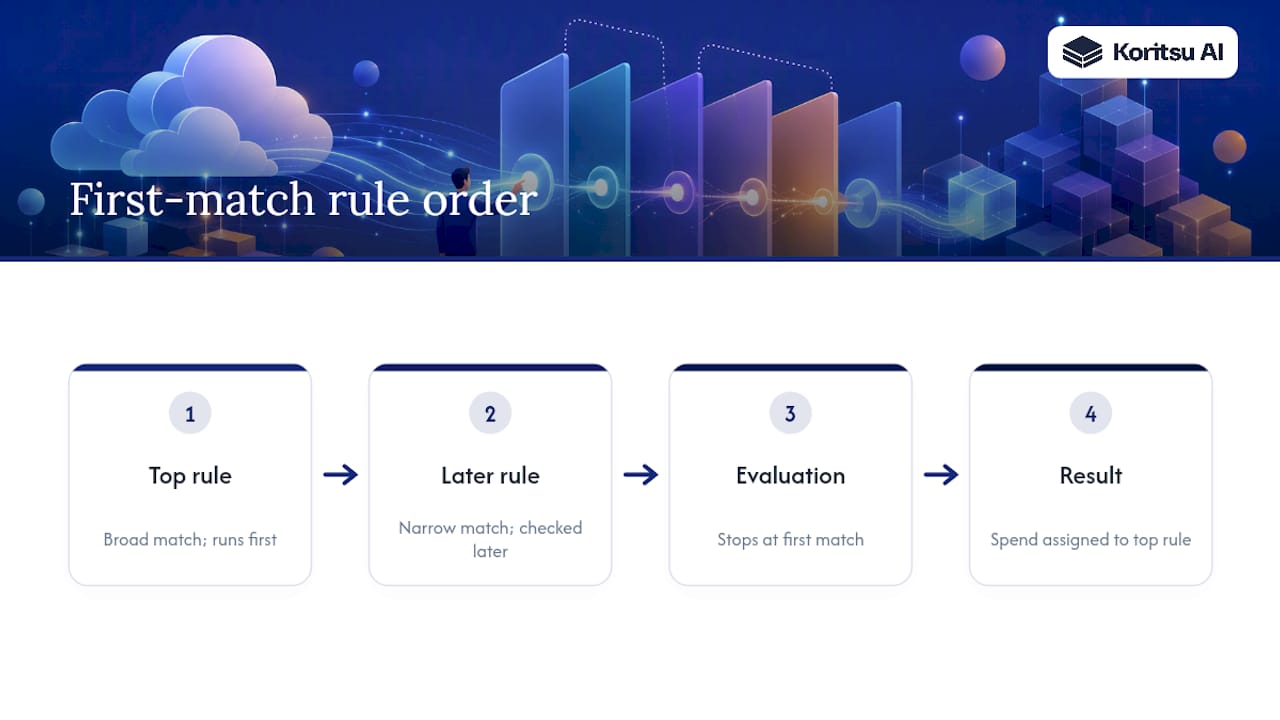
Rule evaluation is first-match: AWS checks your rules top to bottom and stops at the first one that fits, ignoring anything more specific further down the list. Get the order wrong and a broad rule can quietly capture spend meant for a narrower one lower in the list.
The Rule Builder supports simple operators (is, is not, contains, starts with) with implicit ANY/ALL logic across selected values. The JSON editor exposes explicit And, Or, and Not operators for genuinely complex conditions, such as matching a tag value only when it’s paired with a specific account.
Three gotchas come up constantly in practice: matching an account name instead of its numeric ID (names can change, IDs don’t), assuming a tag key exists everywhere when coverage is patchy, and stacking overlapping rules without checking which one wins. Test every change in preview before you trust the output.
How Do Split Charge Rules Handle Shared Costs?
Shared infrastructure, support contracts, and data transfer rarely belong to one team, and split charge rules exist to divide that spend fairly across your existing category values. AWS supports three allocation methods:
- Proportional, which splits based on each target’s existing usage, best when consumption should drive the allocation.
- Fixed, where you assign specific percentages yourself, useful for negotiated or contractual splits.
- Even, which divides equally across targets, the simplest option for governance-driven allocation with no usage signal.
You configure this by selecting a source category value (the shared cost bucket) and one or more target values, then choosing the method and, for fixed splits, entering the percentages yourself. Split-charge results appear in the Cost Categories detail page and in CSV exports, but they don’t automatically propagate everywhere in Cost Management, so check downstream tools individually before assuming full visibility.
Where Do Cost Categories Show Up Across AWS’s Cost Tools?
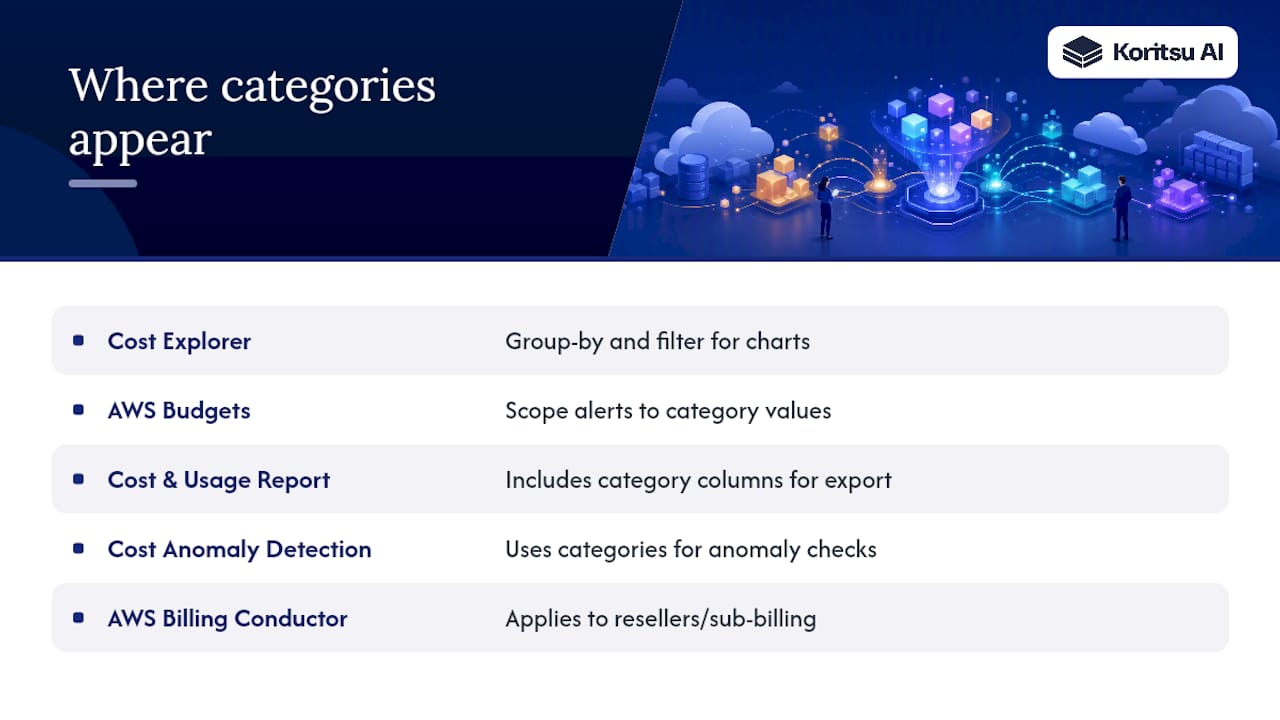
Once created, a category becomes a filter and group-by dimension across the entire cost management suite: Cost Explorer, AWS Budgets, the Cost and Usage Report, Cost Anomaly Detection, and AWS Billing Conductor for organisations reselling or sub-billing AWS usage.
Practically, that means you can group a Cost Explorer chart by category to see team-level trends, scope a Budget alert to a single category value, or export CUR data with category columns intact for BI tools like Amazon QuickSight or a data warehouse. Timing matters here too: new rules and retroactive effective dates need that same processing window before every tool reflects them consistently, so don’t panic if Budgets and Cost Explorer briefly disagree straight after a change.
What Do Real Cost Category Setups Look Like?
Concrete examples make the rule logic click faster than any abstract explanation:
- Account-to-team mapping. Rule 1 matches account ID
111122223333to “Platform Team”. Rule 2 matches account ID444455556666to “Growth Team”. Order doesn’t matter here because the conditions never overlap, but it will the moment you add a broader catch-all rule, so put specific account matches before general ones. - Inherited tag for dynamic projects. Instead of hardcoding project names that change every quarter, an inherited rule pulls the value straight from a
projecttag, so the category updates automatically as engineering names new initiatives. - Regional buckets. A rule grouping by region into “EU Workloads” and “US Workloads” helps with data-residency cost reporting, though any usage type AWS doesn’t attribute to a region (some global services) lands in your default value and needs a separate look.
- Chargeback and anomaly monitoring. Once teams have stable categories, Budgets can alert per team, and Cost Anomaly Detection can flag unusual spend within a category rather than across the whole account, catching problems faster.
What Permission and Scope Limits Should You Plan Around?
Only the AWS Organizations management account can create and edit Cost Categories; member accounts consume them but can’t configure them. If you’re using billing transfer arrangements between separate Organisations, each management account can only manage categories for its own Organisation, which catches people off guard during mergers or multi-entity structures.
AWS also enforces quotas on the number of Cost Categories per account and rules per category, both in the Rule Builder and JSON editor, with current limits published in AWS Service Quotas. If your organisation is planning a split, an acquisition, or a new billing-transfer arrangement, confirm account boundaries before you invest time building categories that won’t carry over.
What Do FinOps Teams Get Wrong When Debugging Categories?
A second recurring pitfall is assuming one management account will configure categories across every AWS Organisation in a group. It won’t. Multi-entity companies routinely discover this only after weeks of categories quietly not applying where they expected.
- Pull CUR line items for the default value and sort by service to spot patterns fast.
- Check tag key spelling and casing across accounts;
Projectandprojectare different keys to AWS. - Confirm you’re editing categories from the actual management account, not a delegated admin account.
Pro Tip: Don’t try to replace tagging entirely with Cost Categories. Use categories for the organisational view finance needs, and keep enforced tagging for the engineering-level granularity categories were never designed to capture. Pilot on one business unit before rolling out organisation-wide.
How Do You Get Started With Cost Categories Quickly?
A working runbook beats a perfect plan sitting in a document nobody reads:
- Assign an owner for the category taxonomy, usually FinOps or cloud finance.
- Agree naming conventions with finance before building anything.
- Confirm you’re working from the management account.
- Draft your first category (start with Team or Business Unit).
- Build rules in a sandbox month using Rule Builder first.
- Use the preview panel against real historical data.
- Set a sensible default value, never leave it blank.
- Publish and wait for the processing window.
- Verify results in Cost Explorer before trusting Budgets alerts.
- Schedule a quarterly review as accounts and teams change.
Pro Tip: Build one category fully, validate it in Cost Explorer for a full billing cycle, and only then start the second. Rushing all categories out at once is how uncategorised spend piles up unnoticed.
Kori’s take: rules get you 80% of the way there
Cost Categories are genuinely effective for the organisational view finance needs, mapping accounts and tags to teams without touching infrastructure. Where they stop working is at the architectural level: a rule can tell you which team owns a cost, but it can’t tell you that a forgotten load balancer or an oversized instance is inflating that team’s bill in the first place. That’s the layer continuous analysis exists for, and it’s where category rules alone consistently leave money on the table.
Get More Out of Your AWS Bill Than Categories Alone Can Show
Cost Categories will tell you which team, product, or environment a charge belongs to. They won’t tell you whether that charge should exist at all, and that’s the gap Koritsu AI closes. Our AI agent, Kori, continuously analyses your AWS spend for the architectural inefficiencies that rules never surface, oversized instances, orphaned resources, wasteful data transfer patterns, and our FinOps specialists help your engineers act on the findings.
One UK bidding platform worked with us to cut cloud costs by 52%, well beyond what allocation reporting alone would have revealed. Koritsu uses a pricing model based on sharing savings found, so clients can explore cost optimizations without upfront costs. Request a free savings opportunity report and see what’s buried beneath your own cost categories.
Sources
FAQ
What Are AWS Cost Categories?
They’re rule-based groupings that map AWS billing line items to organisational structures like teams or products, visible in Cost Explorer, Budgets, and CUR once configured.
What Are the Different AWS Pricing Models?
AWS pricing runs mainly on pay-as-you-go on-demand rates, Savings Plans and Reserved Instances for committed discounts, and Spot pricing for interruptible capacity; Cost Categories don’t change pricing, they organise the resulting spend for reporting.
What Are the Different Categories of AWS Services?
AWS groups services broadly into compute, storage, database, networking, analytics, machine learning, and security, among others; this is distinct from AWS Cost Categories, which organise billing data rather than classify service types.
How Long Does It Take for a New Cost Category to Show Results?
Expect up to 24 hours for a new or updated category to appear fully in Cost Explorer and the CUR, even though effective dates can be set retroactively to the start of a prior month.
Can Cost Categories Replace Tagging Entirely?
No. AWS recommends using categories as an organisational safety net alongside disciplined tagging, not as a full replacement, since tags still carry the technical granularity categories can’t capture on their own.