FinOps Inform
Engineers & Finance: Fix GCP Billing Export Before FOCUS Two Year TTL
Enable GCP billing export to BigQuery, use FOCUS for multi cloud reconciliation, and run finance SQL plus backfill, TTL, and permission checks.

Enable Cloud Billing export to BigQuery to turn flat invoice totals into granular, queryable cost data. Create a BigQuery dataset, then switch on the export from the Cloud Billing console, choosing between standard, detailed, pricing, and FOCUS export types. FOCUS is fast becoming the FinOps standard for multi-cloud reconciliation. Do this before you need the history, not after.
TL;DR:
- Multi-region datasets in US or EU locations can retroactively receive billing data from the start of the previous month, but regional datasets do not support historical backfill.
- Enabling the export API before switching on the billing export is crucial, as failure to do so results in empty datasets, even if the export appears active.
- FOCUS export is the preferred format for multi-cloud reconciliation due to its standardized, immutable schema, but it deletes data older than two years unless copied elsewhere.
- Use BigQuery views on raw export tables to reduce query costs and safeguard dashboards against schema changes, especially when tracking multiple cloud providers.
- Most delays or empty tables are caused by incorrect setup steps, such as region mismatch, missing API enablement, or IAM permission issues, so thorough checks are essential before escalating.
How to set up GCP billing export to BigQuery
Getting this right the first time means working through prerequisites in order. Miss one and the export sits enabled but empty, which is a frustrating way to lose a week of billing history.
- Pick or create the destination project, and confirm billing is active on it. This is often a separate “reporting” project, not your production workload project.
- Create a BigQuery dataset inside that project. Choose a multi-region location (EU or US) if you want Google’s limited retroactive backfill; a single-region dataset will not backfill history.
- Assign IAM roles. You need Billing Account Administrator to enable the export itself, plus BigQuery Admin (or dataset-level Data Editor/Owner grants) to create and manage the destination dataset.
- Enable the BigQuery API. If you plan to export pricing data, also enable the BigQuery Data Transfer Service API, which Google’s setup documentation flags as a hard requirement for that export type specifically.
- Enable the export in the Cloud Billing console, under Billing export, and select the dataset you created. Save the configuration and confirm it shows as active.
Get this sequence wrong and the most common symptom is a dataset that exists but never receives rows, because the API wasn’t enabled before the export was switched on.
What are the GCP billing export types?
Google Cloud doesn’t give you one export. It gives you five, each built for a different question, and picking the wrong one is the most common reason FinOps dashboards feel incomplete.
- Standard usage cost covers cost by project, service, SKU, and location. It’s enough for most invoice reconciliation and top-line reporting.
- Detailed usage cost adds resource-level granularity, including individual VM instances and labels. If you run Kubernetes, you’ll need GKE cost allocation switched on to see cluster-level breakdowns here.
- Pricing data export delivers the list price for every SKU, independent of your actual usage. It depends on the BigQuery Data Transfer Service API and is designed to be joined against cost tables for discount and rate analysis.
- FOCUS export follows the FinOps Open Cost and Usage Specification. It arrives as an immutable dataset with a standardised schema, which is precisely why FinOps teams reconciling AWS, Azure, and GCP spend side by side lean on it rather than provider-specific formats.
- CUD metadata export captures Committed Use Discount details, letting you report utilisation and coverage against what you actually committed to.
Each export type lands in a predictably named BigQuery table: standard uses gcp_billing_export_v1_<BILLING_ACCOUNT_ID>, detailed uses gcp_billing_export_resource_v1_<BILLING_ACCOUNT_ID>, pricing uses cloud_pricing_export, and FOCUS uses gcp_billing_export_focus_<BILLING_ACCOUNT_ID>.
How far back does GCP billing export data go?
Backfill behaviour catches people out more than any other part of this setup, mostly because the rules differ by dataset location and export type.
- Multi-region datasets in EU or US locations receive some retroactive data back to the start of the previous month, while regional datasets do not receive retroactive history.
- Initial backfill may take several days to complete once you enable export, depending on your dataset’s location.
- Pricing export specifically can take up to 48 hours to start populating after you enable it.
- FOCUS export is immutable with a time-to-live (TTL) policy that automatically deletes data older than two years, so you should copy FOCUS data into your own table if you require longer retention.
- Switching dataset or project does not carry your history forward. The new destination starts from zero, so treat that decision as permanent.
Permissions, service accounts and BigQuery costs
Google auto-creates a dedicated service account to run the export once you enable it. Find it under IAM in the billing project and audit its permissions periodically, particularly if you’ve layered on custom roles elsewhere.
- Billing Account Administrator is required to enable or modify the export itself.
- BigQuery Admin covers dataset creation and management; grant narrower Viewer or Data Viewer roles at the dataset level for analysts and finance users who only need to query.
- Storage costs for billing export tables are usually modest, but query costs scale with how often dashboards scan the full table. Partition by usage date, cluster by project or service, and build scheduled queries or materialised views instead of running ad hoc full-table scans every time someone opens a report.
- CMEK (customer-managed encryption keys) can be applied at the dataset level if your organisation requires it for exported billing tables, configured the same way as any other BigQuery dataset encryption setting.
Pro Tip: Build one canonical view on top of the raw export table and point every dashboard at that view, not at the raw table. It’s the single cheapest way to avoid runaway query costs and to survive Google’s occasional schema changes without rewriting five dashboards at once.
What queries turn billing exports into cost reports?
Raw export tables are only useful once you know what to ask them. Google publishes a set of example queries that cover the questions most finance and engineering teams ask first.
- Total cost per invoice month — aggregate the standard export by
invoice.monthto reconcile against the actual bill. - Cost by project or team — group by
project.idor a custom label to build chargeback and cost allocation reports. - Untagged resource cost — filter for rows where expected labels are null, which is usually the fastest way to find spend nobody owns.
- SKU-level list price analysis — join the pricing export against the cost export on
sku.idto see where discounts are and aren’t landing. - GKE cluster breakdowns — filter the detailed export’s system labels, such as
goog-k8s-cluster-nameandk8s-namespace, once GKE cost allocation is switched on.
Wrap frequently-used queries in BigQuery views rather than embedding raw SQL in every dashboard. That single habit is what stops a schema change from breaking every report your finance team relies on overnight. For dashboards specifically, our guide to building an internal cloud cost dashboard walks through structuring these views so they survive schema drift.
If you’re tracking committed spend, our breakdown on sizing GCP Committed Use Discounts pairs well with the CUD metadata export described above. And if GCP is one of several providers you’re reconciling, FOCUS standardises that comparison rather than forcing you to map three different provider schemas by hand, a pattern we cover in more depth in our multi-cloud cost management guide.
Why is my GCP billing export not showing data?
Export delivery isn’t instant, and Google offers no formal delivery guarantee. Different export types report at different intervals, so treat “it’s been an hour and nothing’s there” as normal, not broken.
- Check the dataset region matches what you intended. A single-region dataset with no historical data is usually the region, not a bug.
- Confirm the BigQuery API, and the BigQuery Data Transfer Service API for pricing exports, are both enabled on the correct project.
- Verify IAM roles landed on the account actually enabling the export, not a different one.
- Query the destination table directly for recent timestamps and sample rows before assuming the export has failed.
- If tables stay empty after five days with all prerequisites confirmed, escalate through a Google Cloud billing support case rather than continuing to troubleshoot blind.
Koritsu perspective: what to do once export is on
Enabling export is the easy part. The value comes from normalising it into stable views immediately, and copying FOCUS data out before its two-year TTL bites. Dashboards answer “what did we spend?” Continuous analysis paired with a human engineering review answers “why, and what do we fix?” That second question is where most teams need help beyond what a query can tell them.
How Koritsu uses your billing export to find savings
Once your GCP billing export is live, the data itself doesn’t fix anything. Someone still has to work out why a service costs what it costs, and whether the architecture behind it is the real problem.
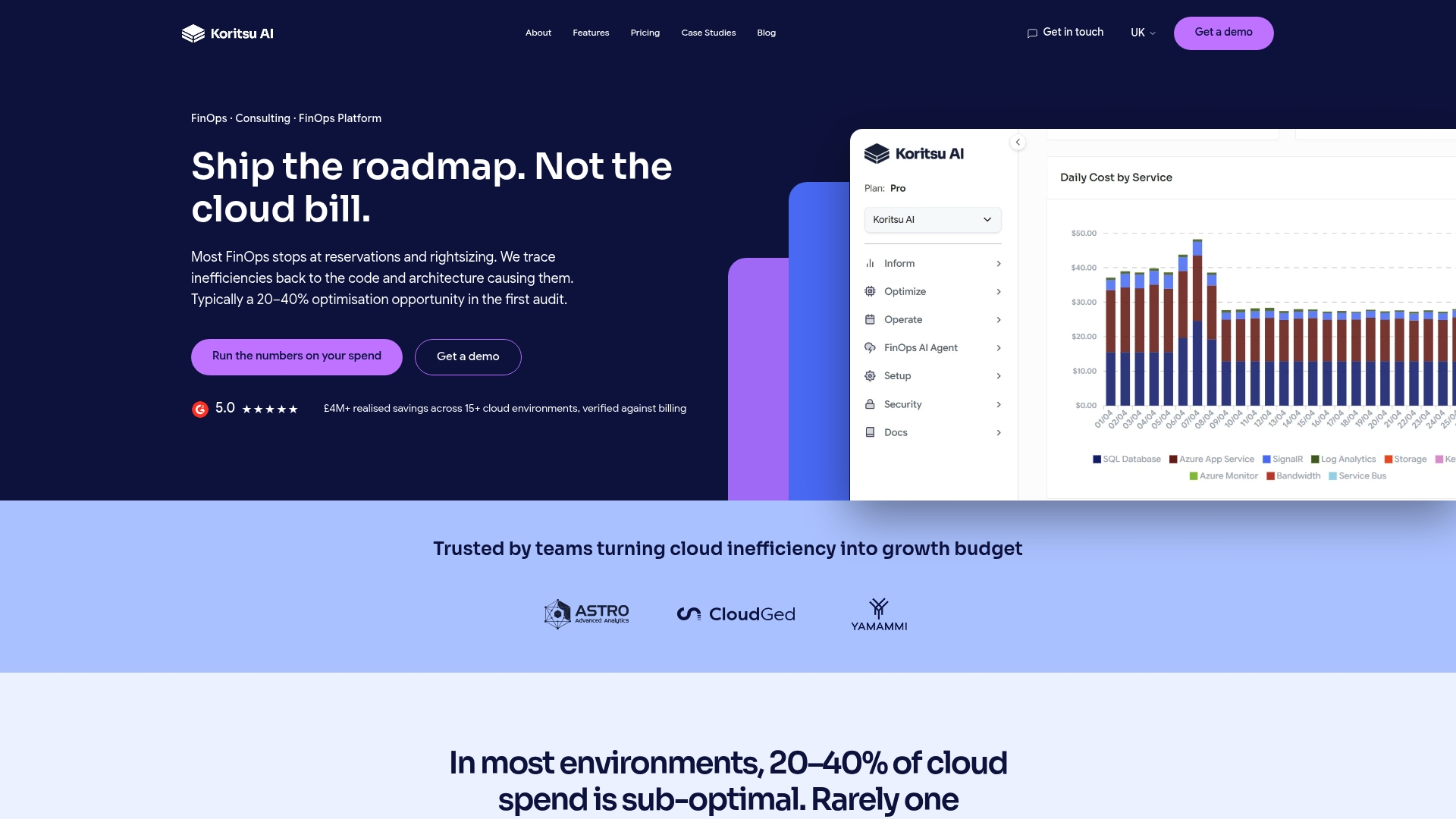
Koritsu AI is the alternative to hiring a full internal FinOps team to chase that answer. Our AI agent, Kori, continuously reads your exported billing tables (BigQuery cost data, pricing exports, CUD metadata) and flags where spend doesn’t match architecture, not just where a chart looks unusual. Our engineers then run the root-cause analysis and execute the fix alongside your team. We start every engagement with a free assessment, and we only charge a share of the savings we verify against your actual billing data afterwards. One UK bidding platform cut cloud costs by 52% working this way, detailed in our case study on that engagement. If your export is already live and the dashboards are just confirming what you suspected, request a free assessment and let us find what the dashboard can’t.
FAQ
What is GCP billing?
GCP billing is Google Cloud’s system for tracking, invoicing, and reporting usage costs across every project tied to a billing account, accessible through the Cloud Billing console and, once exported, through BigQuery.
How do I export data from BigQuery?
You don’t export data out of BigQuery for this purpose; you export Cloud Billing data into BigQuery. Enable it in the Cloud Billing console under Billing export, after creating a destination dataset, and then query it with standard SQL.
How do I access Google Cloud billing?
Open the Cloud Billing console from the Google Cloud navigation menu, select your billing account, and you’ll see invoices, cost breakdowns, and the export settings in one place, provided you hold at least Billing Account Viewer permissions.
How do I link a GCP project to a billing account?
In the Cloud Billing console, select “My Projects,” choose the project, and click “Change billing,” then select the billing account you want linked. You need Billing Account Administrator or Project Owner permissions to make the change.
What’s the difference between standard and detailed export?
Standard usage cost export reports at project, service, and SKU level, while detailed usage cost export adds resource-level fields such as individual VM instances and custom labels, which matters most for teams doing granular cost allocation or GKE cost breakdowns.