FinOps Inform
GCP Budget Alerts: Engineers' Runbook to Set Up, Automate & Respond
Operations runbook for engineers: set up GCP budget alerts, automate responses with Pub/Sub, and use BigQuery to find root causes and act fast.

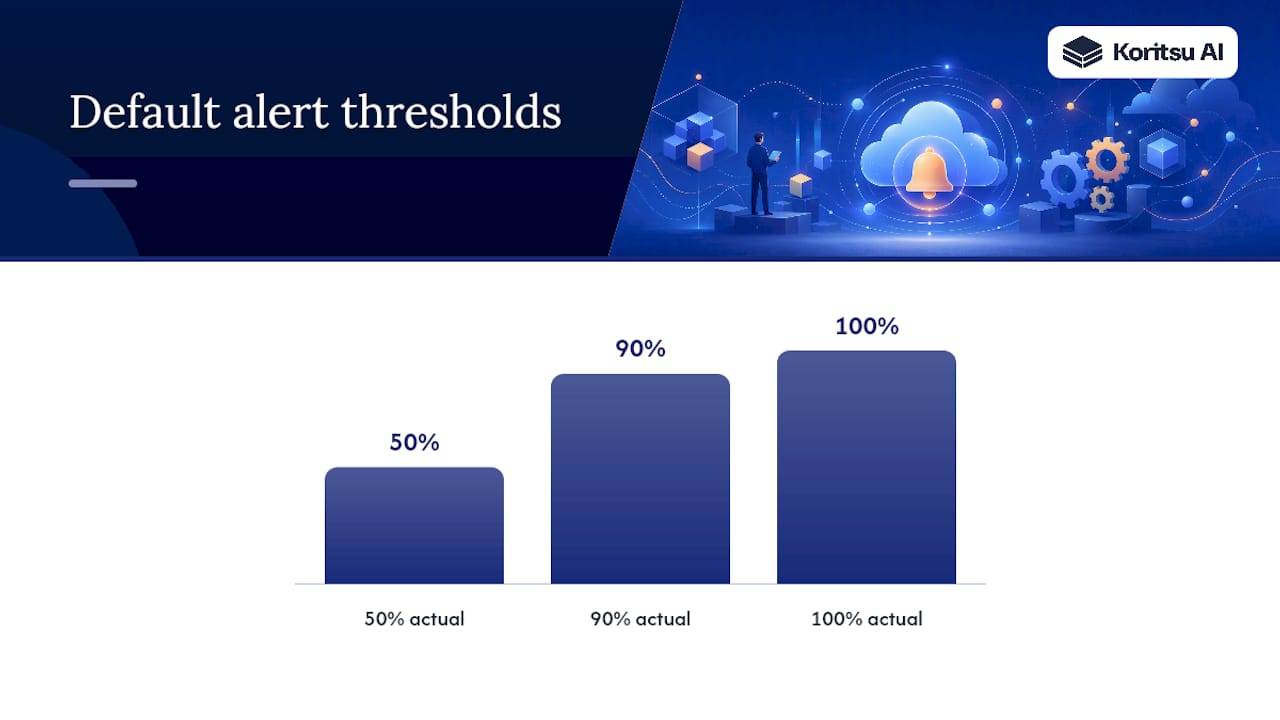
GCP budget alerts monitor your actual and forecast Google Cloud spend and notify the right people when you cross a threshold, by email or through Pub/Sub. The immediate action is simple: create a budget scoped to the correct billing account or project, keep the default threshold rules of 50%, 90% and 100%, and enable programmatic notifications so a spike can trigger a response, not just an inbox alert.
TL;DR:
- Budget thresholds at 50%, 90%, and 100% are default and should be complemented with forecasted thresholds for early warnings.
- Role-based notifications are simple but can produce noise; Pub/Sub automations enable safe, scalable responses to budget breaches.
- Using the Cloud Billing Budget API and infrastructure-as-code tools like Terraform ensures consistency and prevents configuration drift across projects.
- Spend caps are restrictive and can abruptly pause services, making them suitable only for non-production workloads with limited impact.
- Exporting billing data to BigQuery is essential for root-cause analysis and should be enabled immediately to avoid blind spots during unexpected spikes.
Permissions and roles required to manage budgets
Budgets live at two levels, and who can touch them depends on which level you mean. A billing-account-level budget covers every linked project under that account. A project-scoped or label-scoped budget narrows the view to specific workloads, which matters when finance wants a single number but engineering wants to know exactly which service caused it.
Google Cloud splits budget permissions cleanly between the billing account and the project:
- Billing Account Administrator can create, edit and delete any budget on the account, including thresholds and notification rules.
- Billing Account User can view budgets and link projects but cannot modify budget configuration.
- Billing Account Viewer gets read-only visibility, useful for finance staff who need to see spend without the ability to change alert rules.
- Project Owner can usually create project-scoped budgets, but only if they also hold billing permissions on the linked account.
If you plan to use programmatic notifications, you need an extra layer. Publishing budget events to a Pub/Sub topic requires pubsub.topics.publish on that topic, and anything downstream (a Cloud Function, a Workflow) needs its own service account with permission to act, whether that’s scaling a Cloud Run service or disabling billing.
Two practical habits save a lot of grief later. First, centralise billing administration in a dedicated project rather than scattering Billing Account Admin roles across whoever asked first. Second, keep notification recipients role-based rather than naming specific people wherever you can. Individual email addresses go stale the moment someone changes teams; role-based recipients don’t.
Pro Tip: Audit who holds Billing Account Administrator every quarter. It’s one of the most powerful roles in your entire Google Cloud organisation, and it’s also one of the easiest to forget to revoke when someone leaves the finance or platform team.
How do you create a GCP budget?
Creating a budget is a five-minute task in the console, but the decisions you make about scope and thresholds determine whether the alert is useful or just noise six months from now.
Choosing the scope comes first, and it’s the choice most engineers get wrong. A billing-account-wide budget is fine for a small organisation with one team and one workload, but anywhere with multiple projects benefits from narrower budgets: one per project, or one per label if you tag resources by team, environment or product feature. Label-based budgets are underused. If your tagging discipline is solid, a budget scoped to env:production catches drift in exactly the environment where drift is expensive, without drowning you in dev and staging noise.
Setting the amount should reflect a real number, usually last month’s actual spend plus a reasonable margin for planned growth, not a round figure picked because it looks tidy on a slide. Budgets tied to arbitrary targets train your team to ignore alerts, because the first breach happens in week two and nothing bad actually occurs.
Threshold rules decide when you get told. Every new budget defaults to alerts at 50%, 90% and 100% of actual spend, and you can add forecasted-spend thresholds on top, which fire earlier based on projected trajectory rather than money already spent. The distinction matters operationally: an actual-spend alert tells you what has already happened; a forecasted alert gives you a chance to intervene before the bill lands.
You can also configure an alerts-only budget that has no enforcement action attached. It exists purely to notify, which is the right choice for most teams, since automated enforcement (covered later under spend caps) carries its own risks.
Here’s the console workflow, step by step:
- Open Billing in the Google Cloud console and select Budgets & alerts.
- Click Create budget and name it something that will make sense in an incident channel six months from now, not “Budget 1”.
- Choose the scope: billing account, specific projects, or specific labels.
- Set the budget amount, either a fixed figure or based on the previous month’s spend.
- Configure threshold rules: keep the default 50/90/100% actual-spend rules, and add forecasted thresholds if you want earlier warning.
- Choose notification channels: role-based recipients, Cloud Monitoring channels, or a Pub/Sub topic for programmatic handling.
- Review and save. The budget takes effect immediately for the current billing cycle.
For anyone managing more than a handful of budgets, doing this by hand in the console does not scale. The Cloud Billing Budget API supports programmatic creation, update and deletion of budgets, which means you can define them as code alongside the rest of your infrastructure and apply consistent thresholds across every project a team spins up.
Pro Tip: If you manage budgets through Terraform or another infrastructure-as-code tool, define your threshold rules once as a shared module. Teams copying and pasting console settings almost always drift, usually toward looser thresholds nobody remembers approving.
What notification options exist for GCP budget alerts?
Getting the alert to fire is only half the job. Getting it to the right person, fast enough to matter, is the part most teams get wrong.
Role-based email is the default and simplest option. Google Cloud sends alert emails to everyone holding Billing Account Administrator or Billing Account User on the linked account. This is durable because it follows the role, not the person, but it also means anyone with those roles gets every alert for every budget on that account, which gets noisy fast in larger organisations.
Cloud Monitoring notification channels let you name specific email addresses beyond the default role-based set, which is useful for looping in a specific team lead or a shared distribution list. There’s a hard ceiling here worth knowing before you build a process around it: you can attach up to five email channels per budget. Past that, you need a different delivery mechanism.
Pub/Sub programmatic notifications are where budget alerts stop being a notification and start being an automation trigger. Once you connect a budget to a Pub/Sub topic, Google Cloud publishes spend updates multiple times a day, each carrying a JSON payload with the budget’s current spend, the threshold it crossed, and whether the alert is based on actual or forecasted cost.
That cadence matters for how you design a response. Budget calculations aren’t instantaneous. Latency of a few hours between a spend event and its corresponding alert is normal, which rules out budgets as a real-time circuit breaker and puts them firmly in the category of trend monitoring and governance.
A few practical patterns for what to build on top of Pub/Sub:
- Forward the payload to a Slack or Microsoft Teams channel so on-call engineers see it without checking email.
- Trigger a Cloud Function that scales down a specific Cloud Run service or pauses a non-critical batch job.
- Route the notification into Workflows to run a multi-step response: check recent deploys, query BigQuery for the top offending SKU, then open a ticket automatically.
- Feed the payload into an existing incident management tool like PagerDuty or Opsgenie via their respective Pub/Sub or webhook integrations, so a budget breach follows the same escalation path as any other production alert.
The choice between email and Pub/Sub isn’t really either/or. Email works for human-in-the-loop review, where someone needs to look at the number and decide whether it’s a problem. Pub/Sub is for anything you want handled without a human in the loop at 2am, provided the automated action is safe, reversible, and doesn’t just paper over a genuine capacity need.
What are GCP spend caps and how do they differ from budgets?
A spend cap is not a budget with a stricter name. It’s a separate mechanism that can actually pause usage of a service once spend crosses the cap, rather than just telling someone about it.
Spend caps apply to a specific list of eligible services, including the Gemini API, Vertex AI, Cloud Run, and Cloud Run functions, and they come with a meaningful constraint: a spend cap covers exactly one project and one service at a time. You cannot set a single cap across your whole Gemini API usage organisation-wide, and you cannot combine multiple services under one cap.
Spend caps also arrive with preconfigured notification behaviour rather than the flexible threshold rules you get with a standard budget. That’s a deliberate trade-off on Google’s part: a mechanism that can actually shut off a paid API needs guardrails that are harder to misconfigure than a free-text threshold field.
Here’s where the eligible services list matters in practice:
- Gemini API and Vertex AI, where runaway token usage from a misbehaving application or an unbounded loop in an agentic workflow is a genuine, fast-moving cost risk.
- Cloud Run and Cloud Run functions, where a scaling misconfiguration or an unexpected traffic spike (legitimate or otherwise) can drive concurrency, and cost, well past anything a human would approve.
The disruptive part is exactly what makes spend caps useful and risky at the same time. Pausing a Cloud Run service that’s serving customer traffic because it crossed a spend threshold is a blunt instrument. It solves the cost problem and creates an availability incident in the same motion, and if that service is on your critical path, the cure is arguably worse than the disease.
That’s the case for preferring a standard budget with programmatic Pub/Sub notifications over a spend cap for anything customer-facing. A budget alert that triggers a Cloud Function to investigate, throttle non-critical background work, or notify an on-call engineer gives you a graduated response. A spend cap gives you one lever: on or off. Reserve spend caps for genuinely isolated, non-production, or clearly bounded workloads, such as an internal Gemini API experiment or a batch job with no user-facing dependency.
How do you use BigQuery billing export for cost analysis?
Budget alerts tell you that spend crossed a line. They don’t tell you which service, which team, or which SKU pushed it there. That’s what exporting Cloud Billing data to BigQuery is for, and it’s the step most teams skip until the first serious billing surprise forces the issue.
Google Cloud offers several export types, and picking the right one depends on the question you’re trying to answer:
| Export type | What it contains | Best used for |
|---|---|---|
| FOCUS (preview) | Standardised, cross-cloud cost and usage schema | Comparing GCP spend against other providers using a common format |
| Standard usage cost | Daily cost data by project, service and SKU | High-level trend dashboards and budget reconciliation |
| Detailed usage cost | Resource-level granularity, including labels | Root-cause work: tracing a spike to a specific resource or team |
| Pricing | List and effective prices for SKUs | Validating whether a spike came from usage volume or a pricing change |
| Committed use discount metadata | CUD coverage and utilisation data | Checking whether reserved capacity is being used efficiently |
Where you enable this export changes what data you get. A multi-region dataset location backfills the previous month’s data automatically when you turn on export, giving you a head start on historical analysis. A regional dataset, by contrast, only starts collecting from the date you enable it, so a decision made for latency or compliance reasons can quietly cost you a month of historical visibility if nobody accounts for it upfront.
Once the export is running, root-cause queries follow a consistent pattern: filter by date range around the alert, group by project, service, SKU and label, then sort descending by cost. A query that groups yesterday’s detailed usage export by service.description and sku.description will usually surface the culprit in seconds, often revealing something as unglamorous as an oversized BigQuery slot reservation or a forgotten Compute Engine instance left running in a test project.
Query costs themselves are worth watching too, since BigQuery bills by data scanned unless you’re on a flat-rate or editions-based reservation. Partition your billing export table by usage date and filter on that partition column in every query, rather than scanning the full history each time you want to check yesterday’s numbers.
Pro Tip: Enable BigQuery export the day you create your billing account, not after your first cost incident. Retroactive analysis is only as good as the data you were already collecting, and the export setup step most teams skip is exactly the one that makes a spike investigable later rather than a mystery.
How should you respond to a budget alert?
The first ten minutes after a budget alert fires decide whether you’re looking at a genuine cost incident or an afternoon wasted chasing a false alarm. A short, consistent runbook keeps that decision fast.
- Confirm the scope of the alert. Check whether it fired against a billing-account-wide budget, a specific project, or a label. A narrow scope tells you immediately where to look; a broad one means you need BigQuery before you do anything else.
- Check whether it’s actual or forecasted spend. An actual-spend alert means money has already been spent. A forecasted alert means the trajectory looks bad but there’s still time to act before the bill actually lands.
- Query the BigQuery export for the affected scope, grouped by service and SKU, over the last 24 to 48 hours, to identify the specific resource driving the increase.
- Cross-reference recent deployments. Most unexpected spend spikes trace back to a deployment, a configuration change, or a scaling event in the previous 24 hours, not a mystery.
- Decide on a graduated response rather than an immediate kill switch: throttle, scale down, or pause non-critical workloads first; reserve disabling a resource entirely for cases where the risk is unambiguous.
- Verify the mitigation worked by checking the next Pub/Sub update or re-running the BigQuery query, rather than assuming the fix landed.
- Log the incident, including root cause, action taken and cost impact, and open a follow-up ticket for anything structural, such as a missing autoscaling limit.
When you’re automating step five through Pub/Sub, sequencing matters more than most teams expect. A Cloud Function that reacts to a budget notification should scale down or pause, never delete, and it should be idempotent, since alert payloads can lag by several hours and you don’t want the same event firing an aggressive action twice. Build in a verification check before anything that touches production traffic directly, and keep a manual override path so an engineer can halt the automation if the root cause turns out to be a legitimate traffic surge rather than a fault.
| Alert scenario | Likely cause | Recommended first action |
|---|---|---|
| Actual spend crosses 90% mid-month | Sustained usage increase or a new workload | Query BigQuery by service/SKU; check recent deploys |
| Forecasted spend crosses 100% early in the cycle | Trajectory change, often a scaling event | Review autoscaling limits before month-end |
| Single project spikes while account total is normal | Isolated misconfiguration or test environment leak | Scope investigation to that project’s labels immediately |
| Spend cap triggers on Gemini API or Vertex AI | Runaway token usage, often from a loop or agent | Pause the calling service; audit token consumption per request |
| Repeated alerts on the same budget within days | Threshold set too tight for normal variance | Revisit budget amount and threshold rules, not the workload |
Post-incident, resist the temptation to close the ticket the moment spend drops back below threshold. The most useful outcome of any alert isn’t the fix itself, it’s whatever you change about tagging, autoscaling limits, or budget thresholds so the same pattern doesn’t need a human to catch it next time. That’s also where understanding recurring spend patterns across your environment pays off, because a lot of “spikes” turn out to be the same three or four causes on repeat.
Production-grade best practices for alerting and automation
Most organisations treat budget alerts as a compliance checkbox: set them once, forward the emails somewhere, move on. That approach survives right up until the first alert that actually matters, and then it fails loudly, because nobody built the response infrastructure around it.
The teams that get this right centralise billing and FinOps tooling in a dedicated, restricted project rather than letting budget management and remediation scripts live wherever someone first wired them up. That separation matters more than it sounds: a Cloud Function with permission to scale down production resources is powerful, and you don’t want it sharing a project with unrelated experimental code where an accidental deployment could touch it.
At any scale beyond a handful of projects, manage budgets through the Cloud Billing Budget API rather than the console. Defining budgets as code means every new project inherits consistent thresholds automatically, and a policy change (tightening thresholds after a near-miss, say) rolls out everywhere at once instead of requiring someone to remember thirty separate console edits.
Budgets alone, even well-configured ones, only tell you that spend crossed a line. They don’t tell you why, and they’re not fast enough to act as your only line of defence. Pairing budget alerts with continuous anomaly detection closes that gap, catching spend that looks unusual for a given service or team even before it crosses a fixed threshold. This is exactly the layer Kori, Koritsu AI’s agent, is built to add: it watches spend continuously across a cloud environment and surfaces the resource-level cause of an anomaly, rather than leaving an engineer to start a BigQuery investigation from scratch every time a number looks wrong.
A budget threshold tells you that something changed. It doesn’t tell you what changed, why, or whether the fix is a five-minute config change or a genuine architectural problem. That gap between “alert fired” and “root cause understood” is where most cloud cost incidents actually live, and it’s the part fixed thresholds were never designed to solve on their own.
Pro Tip: Design every automated remediation with an audit trail and a rollback path from day one. A Cloud Function that scales down a service without logging what it changed, and when, turns a cost incident into a mystery outage the next time someone asks why a service was running at half capacity last Tuesday.
Build cost governance the same way you’d build any other operational discipline: written runbooks for common alert scenarios, a cost SLO per major service so “normal” has a defined range, and a quarterly review of threshold rules against actual spend patterns rather than the numbers picked when the budget was first created.
Why budgets are governance, not a circuit breaker
Budget alerts are an early-warning system, not a safety net. They tell you that something has changed, at a lag of hours rather than seconds, and that’s a fundamentally different job from stopping a bill in real time. Treating a budget threshold as the only defence leaves a gap that a genuinely fast-moving spike (a runaway Gemini API loop, a misconfigured autoscaler) can blow straight through before anyone reads the email.
The teams that handle this well don’t rely on one mechanism. They pair budgets with programmatic Pub/Sub automation for graduated response, and BigQuery export for the root-cause work that actual prevention depends on. What’s worth pushing back on is the instinct to reach for the bluntest tool, a spend cap or a kill switch, the moment cost anxiety kicks in. Resilience and cost control aren’t opposites, but a blunt stop that takes down a customer-facing service to save a few hundred pounds is rarely the trade a business actually wants.
Authoritative links for configuration and deeper reading
For hands-on setup, Google’s own documentation on creating and editing budgets, the Budget API, and spend caps covers every configuration detail referenced above. For the export side, our practical walkthrough on fixing GCP billing export before the FOCUS two-year TTL is worth bookmarking before you set up BigQuery for the first time.
If budget alerts and Pub/Sub automation feel like the right foundation but you’re not sure your thresholds, exports, and remediation pipelines are actually catching the spend that matters, our Savings Opportunity Report gives you an outside, engineering-grade review of where your GCP spend is actually going, matched against a success-fee model that only charges against savings verified on your actual bill. For organisations that want ongoing coverage rather than a one-off review, FinOps as a Service extends that same analysis into continuous monitoring, anomaly detection through Kori, and hands-on support acting on what the alerts and BigQuery data reveal.
FAQ
Where do I find Google Cloud budget alerts?
Budget alerts live in the Billing section of the Google Cloud console, under Budgets & alerts. From there you can view existing budgets, check which threshold rules have fired, and create new budgets scoped to a billing account, project, or label.
What is a cloud billing alert?
A cloud billing alert, in Google Cloud’s terms a budget alert, is a notification triggered when actual or forecasted spend crosses a threshold you’ve set against a budget. By default, new budgets fire at 50%, 90% and 100% of actual spend, and alerts can be delivered by email or through Pub/Sub for automated handling.
How do you reduce GCP costs?
Reducing GCP costs reliably comes down to combining visibility with action: set budget alerts to catch drift early, export billing data to BigQuery to find the specific resources driving spend, and address root causes like oversized instances, orphaned resources, or inefficient architecture rather than just monitoring the number. Ongoing anomaly detection catches issues that fixed thresholds miss between alert cycles.
What counts as Google’s budget in GCP?
In GCP, a budget is a configurable spend limit you set at the billing-account, project, or label level, paired with threshold rules that trigger notifications as spend approaches or exceeds it. It’s a monitoring construct rather than a hard cap, unless you specifically pair it with a spend cap or a programmatic automation that enforces a limit.
How does Pub/Sub notification cadence work for budgets?
Once a budget is linked to a Pub/Sub topic, Google Cloud publishes spend updates multiple times a day, each containing the current spend and threshold status in JSON. That cadence, plus a typical lag of several hours between spend and alert, makes Pub/Sub notifications well suited to automated triage and mitigation, but not to real-time circuit-breaking.